
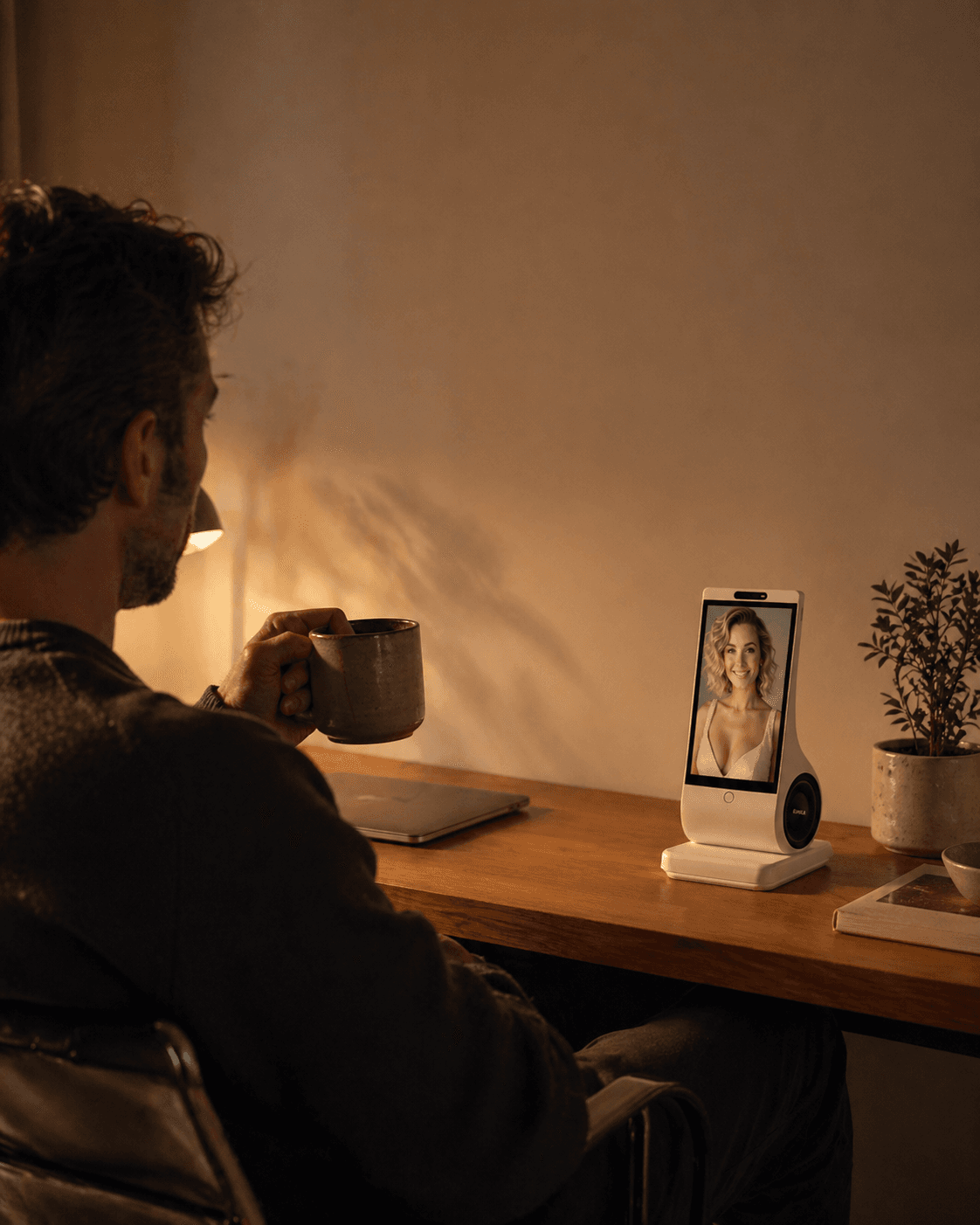
Treat a spoken “I’ll remind you” as a request to check, not proof that a reminder will arrive. Find the saved reminder through the product’s documented controls, confirm its date, time and delivery route, and try a harmless reminder under ordinary conditions. If you cannot inspect it or receive the test, keep an independent arrangement for anything you need to remember. One successful notification does not establish future reliability or prove that you completed the task.
This guide is for adults checking ordinary reminders, such as returning a library book or taking a break. EUVOLA sells a home companion device and publishes this editorial method. It is not a report of product testing or a certification of any reminder service.
What should exist beyond the conversation?
“You like a break after lunch” can be a remembered preference. “Take a break tomorrow at 2 p.m.” can be a proposed instruction. Neither, by itself, shows that a scheduler has an active item it will deliver to you.
Look for the actual reminder list, task card or other documented way to inspect a scheduled item. Open it yourself rather than relying on another generated description of what the system supposedly saved. Products expose different controls; if yours does not provide a visible record, ask support how a user can verify the schedule and mark that part unknown meanwhile.
Keep the questions separate: was something saved, did a notice reach the intended person, and did that person carry out the action? Our memory guide explains why remembering a routine is a different function from triggering a reminder.
Check the time you meant, not just the words it repeated
Read the saved item against your request. Confirm the action, full date, local time, relevant time zone, whether it repeats, and when repetition ends if that matters. An item without a time may behave differently from one scheduled for a particular minute. “Tomorrow evening” also leaves more room for interpretation than a date and time you have checked.
These details depend on the product. For example, Apple’s Reminders instructions distinguish due dates from times and describe time-zone settings. That is documentation for Apple’s product, not evidence that every AI companion uses the same defaults or controls. If you travel, check how your own service handles the change rather than assuming the reminder follows either your original location or your new one.
Here is an invented example: you ask for one reminder to return a library book on Saturday at 10 a.m. The saved item should correspond to that date, time and intended location’s time zone, without an unintended daily repeat. This example supplies no tested wording that guarantees a product will create the item correctly.
Observe delivery where you expect to notice it
Choose a harmless test with a clear label and a time when you can observe the expected channel. A reminder to read a test note a few minutes later is one possible example, not a validated test duration. Do not use medication, an emergency, a payment, or an important deadline as the experiment.
Check the product’s documented delivery route: device speech, a phone notification, email or something else. Do not assume all routes are available. Inspect the relevant permissions and normal notification settings without disabling unrelated alerts. Google’s Android Tasks guidance requires a task date and time for notifications and describes permissions that can affect missing or delayed alerts. Those are Google Tasks conditions, not universal settings for companion devices.
Record what you actually observed: the intended time, the channel and device checked, and whether or when the notice appeared. Merely reopening the chat and receiving “here is your reminder” does not demonstrate an unattended notification. Hearing a notice while standing beside a device also does not show you would hear it from another room.
Keep ordinary network and power arrangements intact. Do not disconnect household Wi-Fi, care equipment or emergency systems to test a reminder. If outage behavior matters, obtain the provider’s documented procedure and keep it unknown until appropriately verified.
Check changes and stopping separately
If you need to reschedule, edit your harmless test item through supported controls and inspect the saved result. Check that you have the intended item rather than both an old reminder and a replacement. Observe the new time; if the old time is still upcoming and practical to observe, check for an unwanted notice then too.
Use the documented stop, pause or deletion control on your own test reminder when finished. A reply saying “cancelled” is not enough to establish what happened to the schedule. Inspect the resulting state where available. Not receiving a notice on one occasion also cannot prove that every future repetition has been removed. If you cannot verify cancellation, ask support before relying on that control.
What if the reminder does not arrive?
If no scheduled item is visible, do not assume changing notification permissions will create it. If the item is visible but no notice arrives, inspect its saved time and the documented delivery settings. If a notice arrives but you overlook it, the problem may be where or how it is presented. These are different observations, not diagnoses of the underlying software.
Avoid repeatedly recreating the same reminder to obtain a reassuring answer; you may leave duplicates. Keep a short private record of the exact request, saved fields, expected time and observed result. Remove personal details before sharing evidence with support. Use your existing independent reminder arrangement while the question remains unresolved. For a broader purchase decision, use the product comparison record to separate documented capabilities, observations and unknowns.
What is documented for EUVOLA?
The current EUVOLA FAQ says it can create schedule reminders. It does not document the inspection interface, execution history or missed-reminder handling needed to verify every step above; this guide has not tested them. Keep those details unknown and ask support about the particular routine you need.
The FAQ also states that EUVOLA requires Wi-Fi and does not currently provide offline functionality. It cannot confirm medication intake or alert family about missed medication. A reminder is not a caregiver, clinical judgment, a crisis service or emergency response. Keep those responsibilities with the appropriate people and services, regardless of how reassuring the conversation sounds.