Pair your device
Connect the app to Euvola during first-time setup by scanning the code shown on the device.


Euvola app
Pair your device, choose or create a Companion, and adjust screen, light, and sound settings from your phone.
Conversations happen on your Euvola device.
App controls
Use the app for setup and settings. Talk with your Companion on the device.
Connect the app to Euvola during first-time setup by scanning the code shown on the device.
Choose an official Companion or build a custom one with the appearance, personality, and backstory you want.
Change screen brightness, ambient light, volume, and other device controls from your phone.
Review profile, language, privacy, support, and account settings in one place.
Current app screens
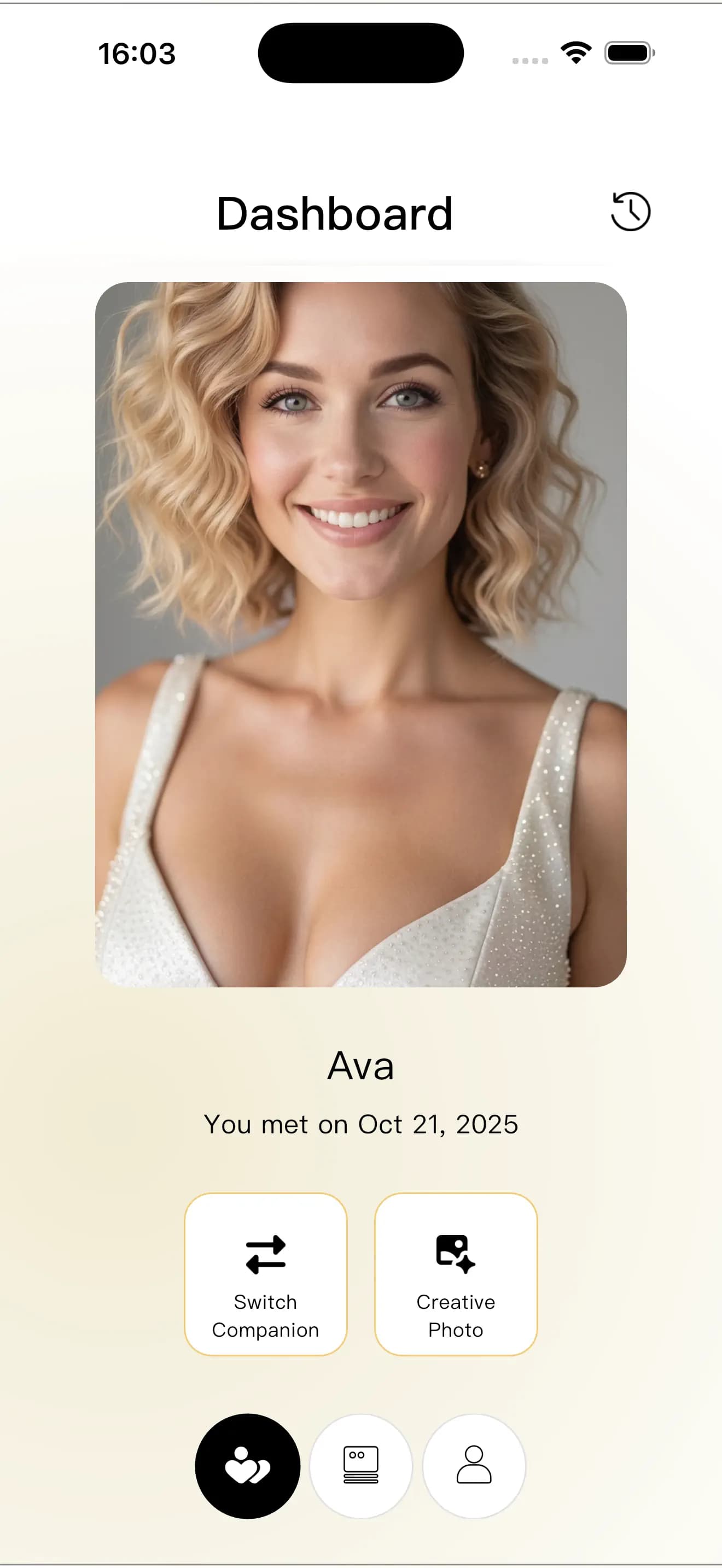
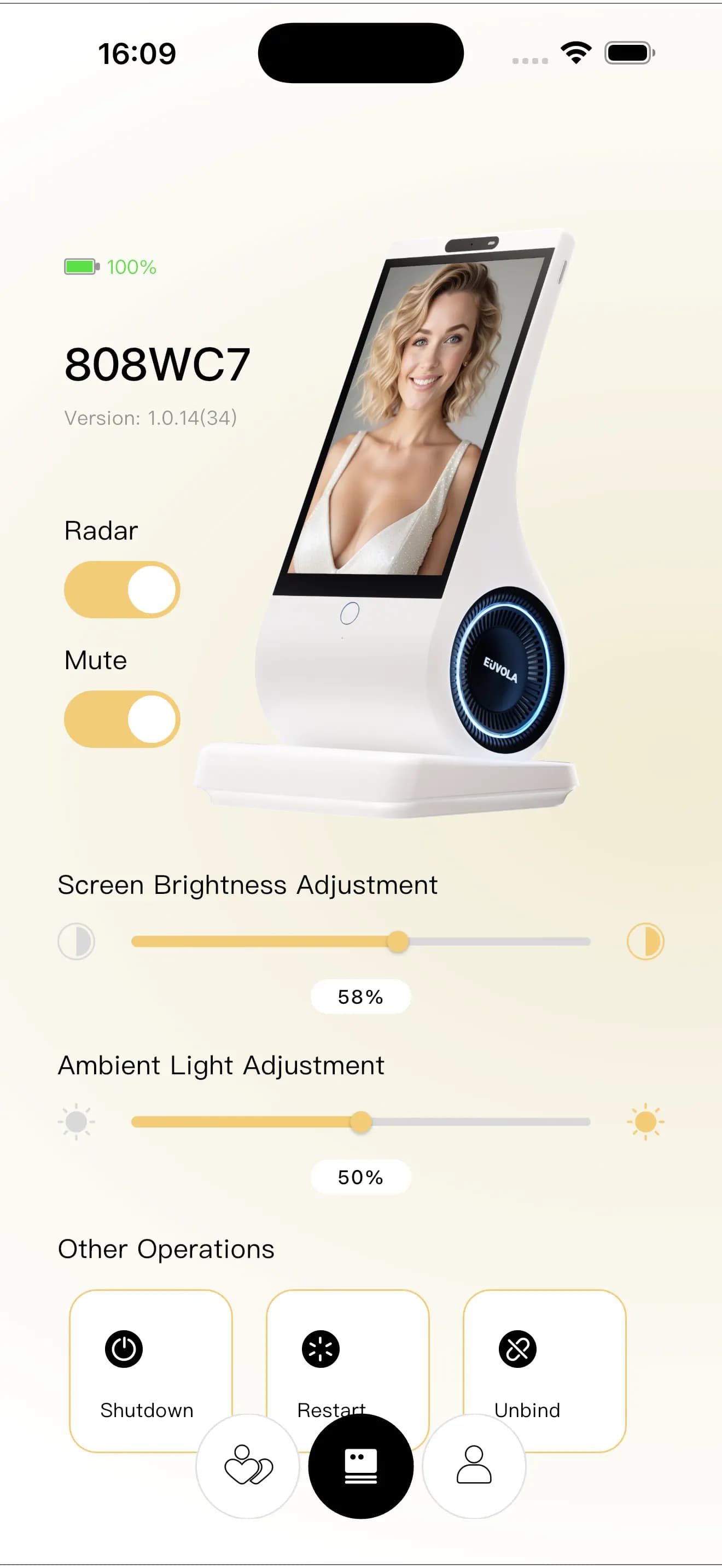
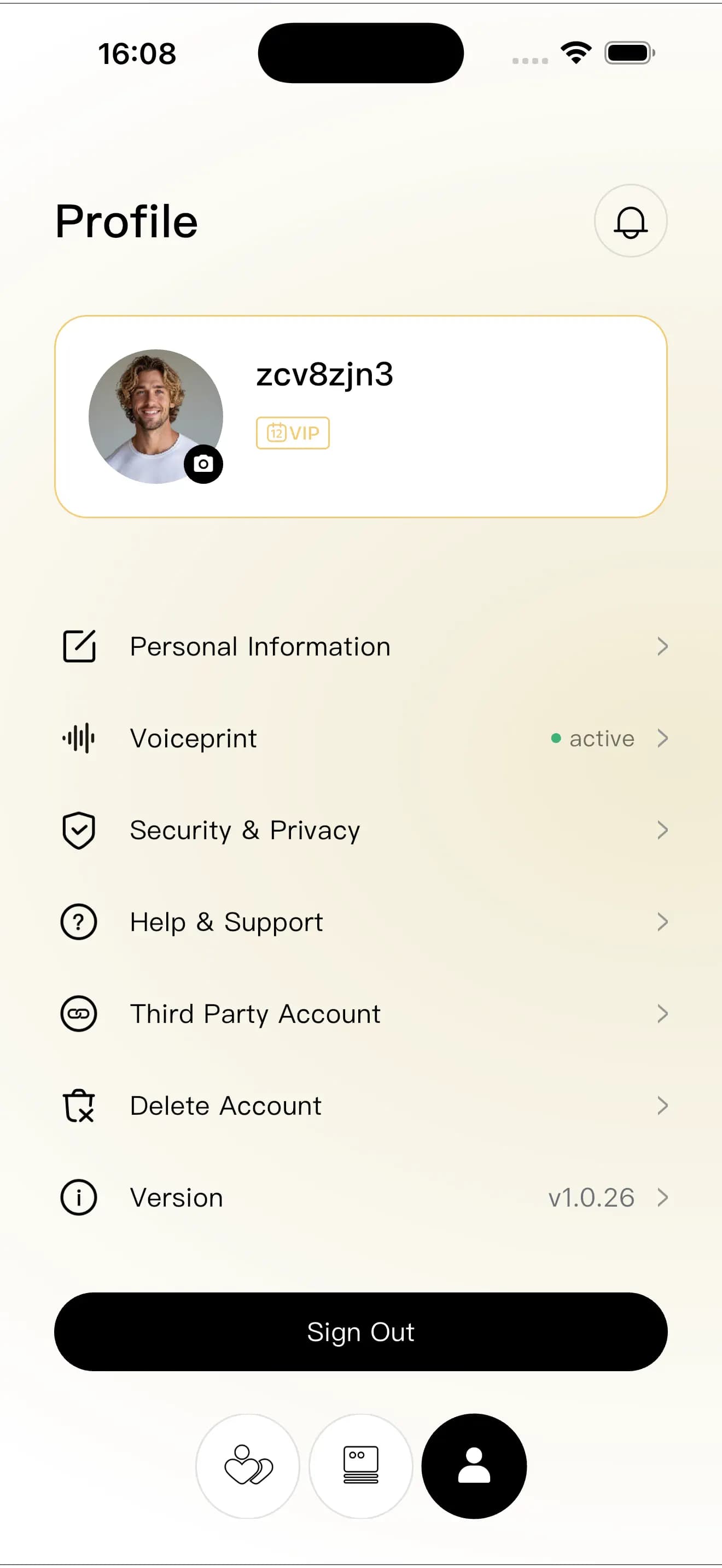
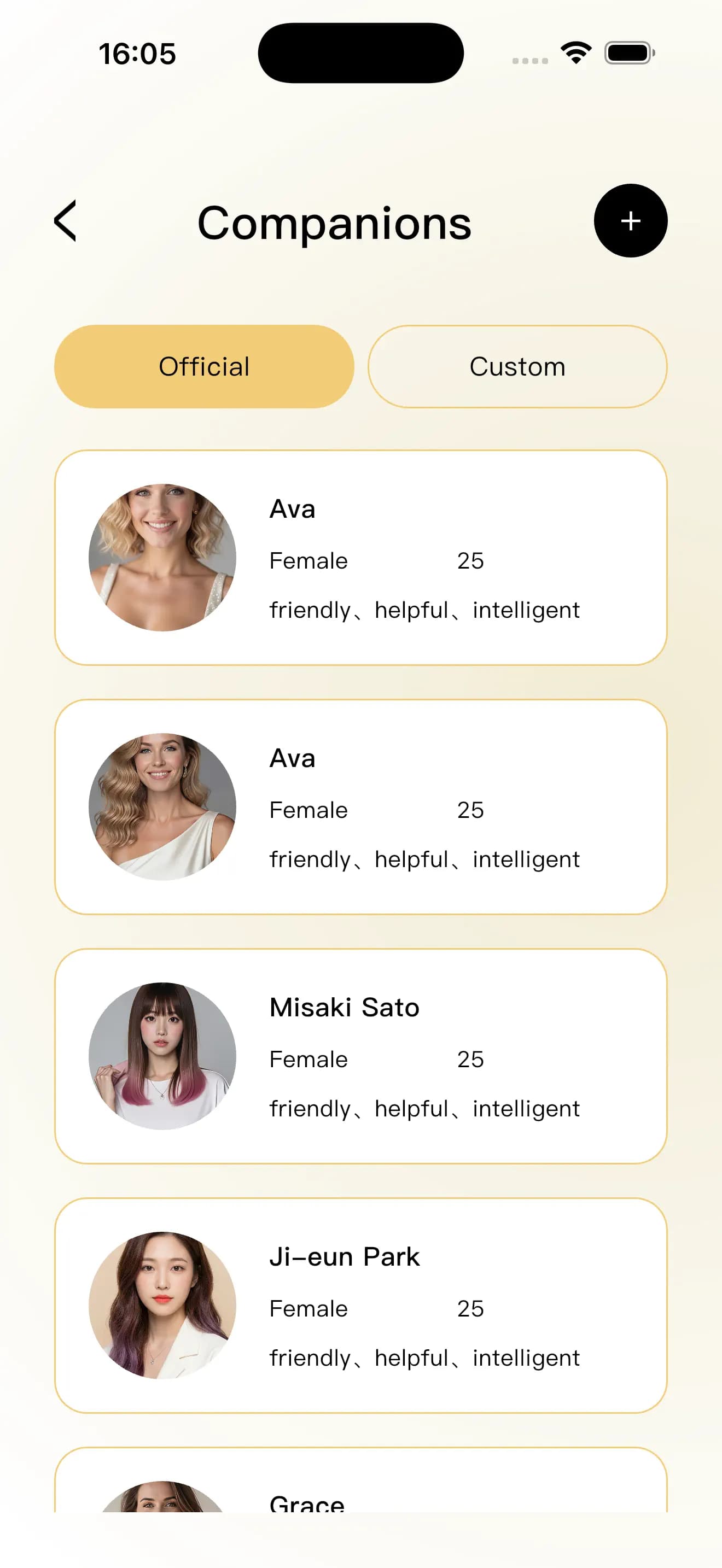
First-time setup
Keep your Euvola powered on and your home Wi-Fi details nearby before you begin.
Open the app, create or sign in to the account that will stay with this Euvola.
Follow the device screen until it shows a pairing code, then scan it with the app.
Select or create a Companion, finish the on-screen prompts, and continue the conversation on Euvola.
Support
The guide covers power, Wi-Fi, pairing, physical controls, and common fixes. If something still does not work, email Euvola Support with the device name and a photo of the screen.
Discord is optional and useful for community discussion and product updates. It is not required to set up or use Euvola.
The app is built to set up and manage a Euvola device. Companion conversations take place on Euvola itself.
The App Store requires iOS 13.0 or later on iPhone and iPadOS 13.0 or later on iPad. Google Play checks compatibility for your Android device.
No. The app is for setup, Companion management, and device settings. Voice conversations take place on Euvola.
The first QR code shown at startup opens the app download page. After Euvola connects to Wi-Fi, a different pairing QR code appears. In the app, open Bind Device or Scan to Bind and scan that second code.
Connect to Hotspot is a temporary setup screen on some software versions. Once the app is installed, do not keep scanning the first download QR code. Continue until Euvola is online, then use Bind Device to scan the final pairing code. If the loop continues, update the app and send Support a short video of both screens.
A factory reset does not remove the device from its account. Sign in to the original account, remove or unbind Euvola, then use Bind Device from the new account. If you cannot access the original account, contact Euvola Support.
Request a new code and enter the most recent one. If it does not arrive, check the email address and your Spam or Junk folder. If a fresh code still fails, contact Euvola Support with the email address used for the account.
No. Companions are associated with your Euvola account and cloud data, not only with the phone or device. Sign back in with the same account. Some device settings may need to be adjusted again, and a factory reset does not unbind the device.
Euvola currently supports 22 languages: Chinese, English, Japanese, Korean, German, French, Spanish, Portuguese, Russian, Arabic, Hindi, Indonesian, Thai, Vietnamese, Malay, Dutch, Swedish, Finnish, Polish, Czech, Greek, and Italian. Features are the same across supported languages, although recognition can vary with accent, speaking speed, background noise, distance, and network conditions.
Use one clear, front-facing photo you have permission to use, a voice sample of at least 10 seconds (about 30 seconds is recommended) or an official voice, and a character description. Video clips are not supported. Generation usually takes about 30 minutes.
The temporary creation limit is based on recent generation attempts, not the number of Companions currently saved. Deleting a Companion does not reset it. Wait 24 hours and try again; if the message remains, contact Support.
Update the phone app through the App Store or Google Play. Euvola receives software and firmware updates over the internet; when an update is available, follow the prompt in the app. Keep the device powered and connected to Wi-Fi while it updates.