01
Your Euvola
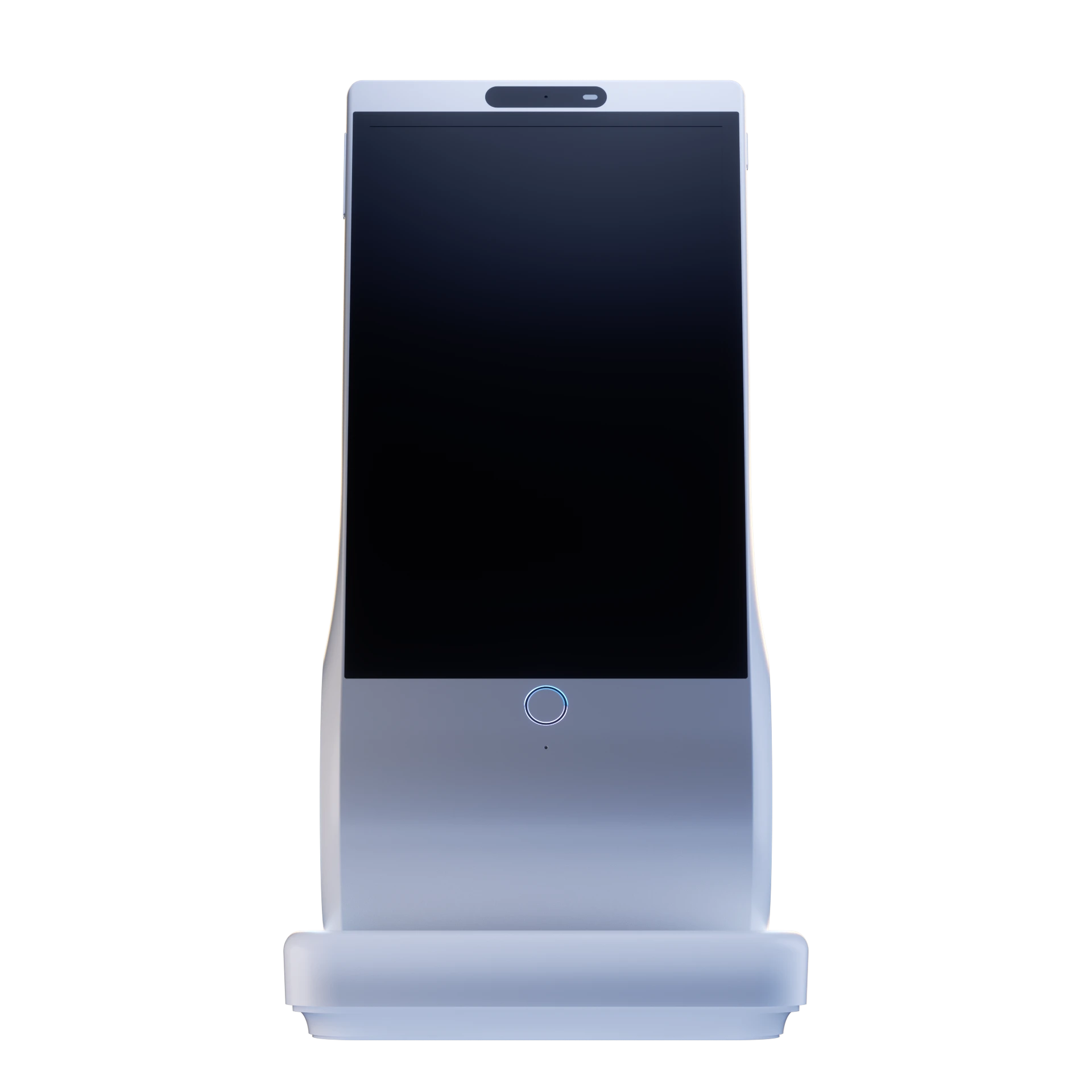
Choose a stable, well-ventilated spot with a strong Wi-Fi signal and a nearby outlet.

EUVOLA SETUP GUIDE
Keep your Euvola and phone together as you power on, connect, pair, and choose a Companion. Each step tells you what success looks like before you move on.
You will need your Euvola, a phone, and a reliable home Wi-Fi connection.
01
Choose a stable, well-ventilated spot with a strong Wi-Fi signal and a nearby outlet.
02
The box includes a USB-A to USB-C charging cable.
03
A power adapter is not included. Use one that matches the requirements printed on the device label and accepts USB-A.
04
You will use it to install the Euvola App, sign in, and scan the pairing code.
05
Have the network name and password ready. Core conversation and memory features require an internet connection.
INITIAL SETUP
Do not skip ahead. Move on only after you see the success check for the current step.
Start the on-device guide, then get your account ready on your phone.
You are ready to continue when
The Wi-Fi selection screen appears on Euvola.
Keep in mind
One account currently supports one paired Euvola. After setup, keep the device powered on and plugged in for normal use.
Enter Wi-Fi details on the Euvola screen. You do not need to look for a Euvola hotspot in your phone settings.
You are ready to continue when
A device-pairing QR code appears automatically on the Euvola screen.
Keep in mind
The pairing code appears only after Euvola is online. Do not guess compatibility from a network name marked 2.4 GHz or 5 GHz; use a network the device can see and join successfully.
This links the Euvola in front of you to your account.
You are ready to continue when
Euvola appears in the App and shows as online or ready for Companion selection.
Keep in mind
A factory reset does not unpair the account. If the device says already bound, remove it from the original account before pairing it again.
Use an official Companion first to confirm that the full setup works. You can create a custom Companion later.
You are ready to continue when
Your Companion appears and completes at least one spoken exchange with you.
Keep in mind
Conversation happens on the Euvola device. The App is mainly for setup, pairing, device settings, and Companion management.
01
Use a stable, ventilated place with reliable Wi-Fi and nearby power. Keep Euvola plugged in; the battery is intended for several hours of backup use.
02
Adjust speaker volume and light-ring brightness from the device page in the App.
03
Press and hold HOME until the red light stays on. Press and hold again to resume listening.
04
Confirm an official Companion works first. Only upload photos and voice samples you have permission to use.
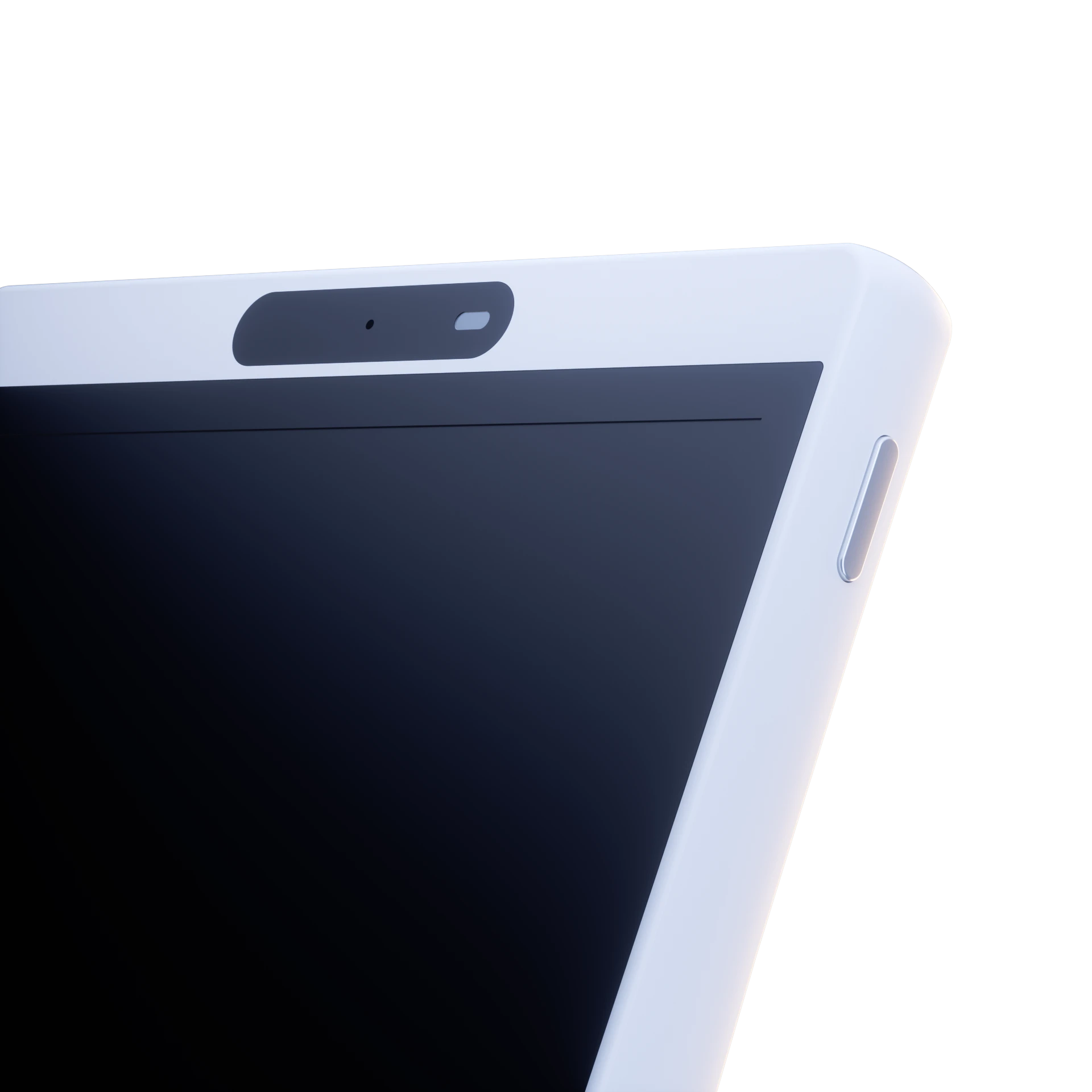
The black panel above the screen is a presence sensor, not a camera.
01
Detects when someone is nearby so Euvola can respond naturally. It does not take photos, record video, or identify faces.
02
Used to choose Wi-Fi, display download and pairing codes, and show your Companion.
03
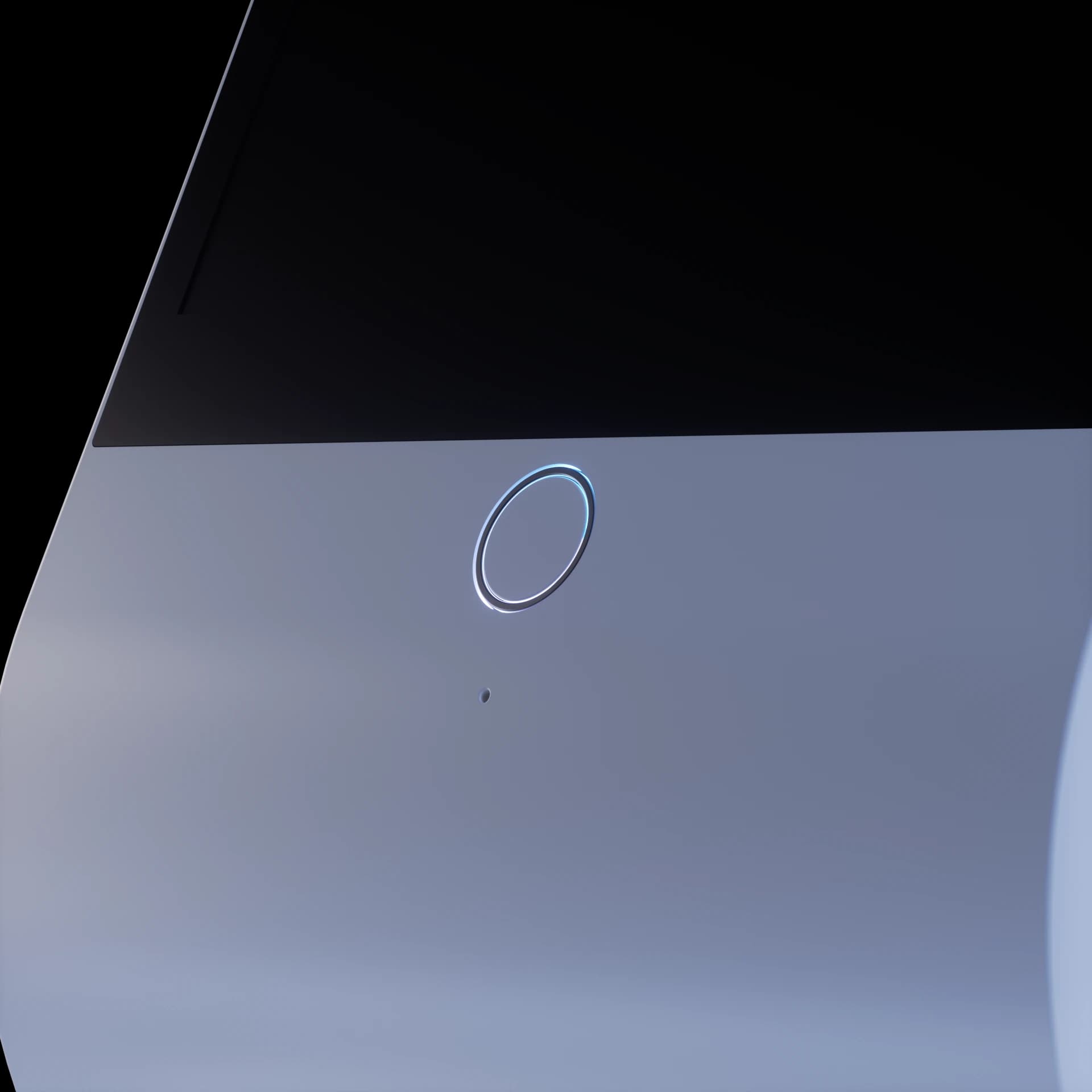
Press once to continue during setup. During a conversation, press once when you want your Companion to keep talking. Press and hold to mute or unmute the microphone.
04
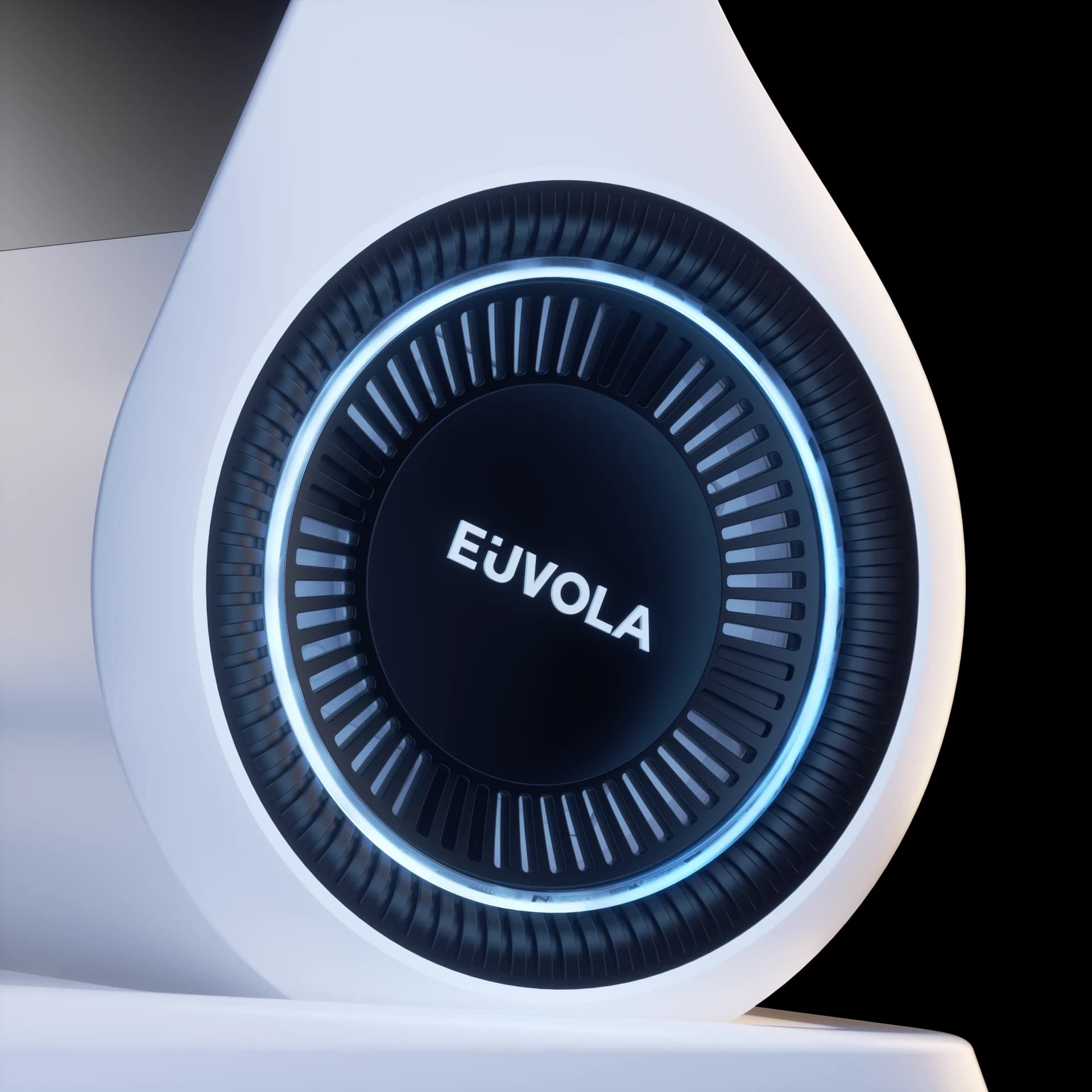
The speakers play your Companion's voice. The light rings show device status and add ambient light; brightness is adjustable in the App.
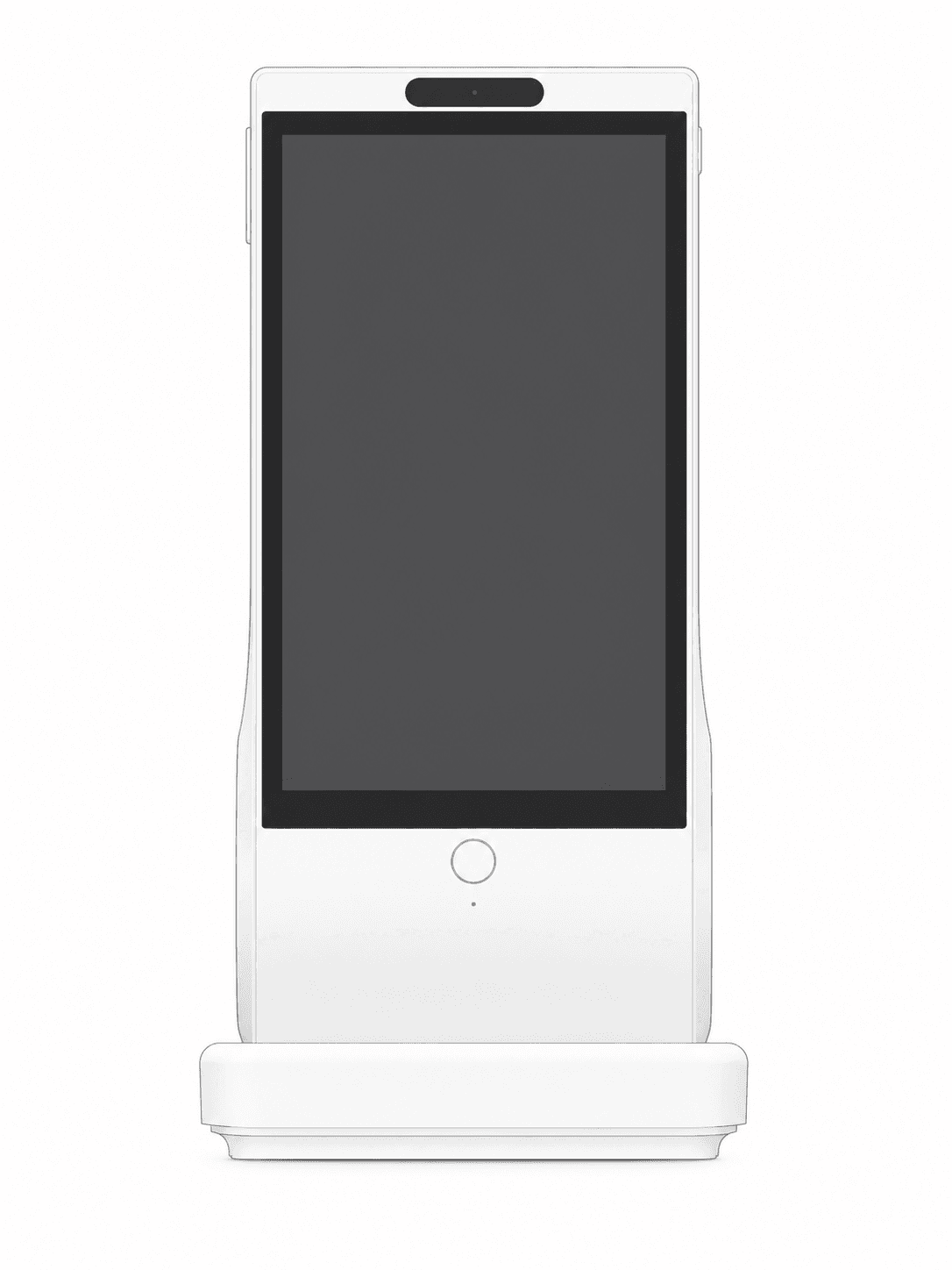
Left side
Press the upper or lower button to raise or lower speaker volume, including while your Companion is speaking.
Front
Press once to continue during setup. In conversation, press once to hear more without having to reply. Press and hold to mute or unmute the microphone.
Right side
Press and hold to turn Euvola on. To shut down, restart, or reset, press and hold, then follow the options on screen.
Base
Tilt the device until the screen sits close to eye level and face-to-face conversation feels natural.
Work on the current step first. A factory reset should not be your first response.
Yes. The App handles initial setup, sign-in, device pairing, Companion management, device settings, and updates. Everyday voice conversation happens on Euvola itself.
No. The box includes Euvola, a USB-A to USB-C cable, and a quick-start card. Use a power adapter that meets the requirements printed on the device label.
There is no need to shut it down each day. Keep it plugged in at its regular location. The built-in battery lasts several hours and is intended for short moves or temporary outages; actual time varies with volume, brightness, and use.
No. Euvola has no camera. The top area is a presence sensor that can tell when someone is nearby; it does not take photos, record video, or identify faces.
Your Companion and core account data are linked to your account, not stored only on one device. A reset requires setup and pairing again, but does not unpair the account. Contact support if your data does not return as expected.
Do not include your Wi-Fi password, account password, or full payment details.
Guide updated July 15, 2026